Git Tags: Your Guide to Version Control Like a Pro

Introduction: What Are Git Tags?
Imagine you’re reading a book 📖 and want to bookmark your favorite pages for quick reference. Git tags work similarly—they’re human-readable labels for specific commits in your repository’s history. Whether you’re marking a release (like v1.0 or v2.0) or highlighting a milestone, tags make it easy to revisit important moments in your project’s timeline.
Understanding Git tagging is crucial for effective version control, whether you're new to Git or have years of experience. In this guide, we'll explore different types of Git tags, how to create, manage, and push them, and even how to use them with GitHub Releases. Let’s dive in!
Why Use Tags Instead of Commit Hashes?
While a commit hash uniquely identifies a commit, it is often a long and complex string that is hard to remember and reference. Tags, on the other hand, provide a human-readable label for important milestones, making it much easier to track versions, releases, and significant changes in a project.
Additionally, annotated tags store valuable metadata like the tag author, tag date, and a descriptive message, to enhance the clarity.
Types of Git Tags
Git supports two types of tags:
1️⃣ Lightweight Tags
Lightweight tags are ideal for quick, temporary tagging. They act as a simple reference to a commit (like a pointer) and are stored as a label attached to a commit.
A Lightweight Tag contains no metadata ( e.g., tag author, message, tag date, etc.).
Creating a Lightweight Tag
git tag v1.0
This command labels the current commit as v1.0.
Or, we can also specify the commit hash, e.g.:
git tag v1.0 2ec6378
2️⃣ Annotated Tags
Annotated tags are full-featured tags with metadata (tagger name, email, creation date, tag message). They are stored as tag objects in git.
Annotated tags are recommended for official versioning (e.g., releases).
Creating an Annotated Tag
git tag -a v1.1 -m "This is an annotated tag for version 1.1"
🛠 Working with Git Tags
Viewing Tag Details
To see details about a tag:
git show v1.1
Since it’s annotated, you’ll see tag metadata like tagger, message etc. and commit details. E.g.,
  tag v1.1
  Tagger: Steve <tagger-email-id>
  Date:   Sat Feb 22 18:49:04 2025 +0530

  This is a test tagging message

  commit b0ff94d1e50a94ac34e8e7486be1c94a15d4803a (HEAD -> main, tag: v1.1)
  Author: Steve <tagger-email-id>
  Date:   Sat Feb 22 18:46:59 2025 +0530

  Testing annotated tag

  diff --git a/Pro.txt b/Pro.txt
  index a83de88..8149962 100644
  --- a/Pro.txt
  +++ b/Pro.txt
  @@ -1 +1,2 @@
  This is the commencement of Proj
  +This is for the 3rd commit
If it were a lightweight tag, only the commit details appear. E.g.,
  commit 2ec63783b67b1cca5602f45bbfb32b5bcda68879 (HEAD -> main, tag: v1.1)
  Author: Steve <author-email-id>
  Date:   Sat Feb 22 17:56:47 2025 +0530

  Testing lightweight tag

  diff --git a/Pro2.txt b/Pro2.txt
  index d166cb2..29d57ef 100644
  --- a/Pro2.txt
  +++ b/Pro2.txt
  @@ -1 +1,2 @@
  This is the 1st commit
  +This is for the 2nd commit
Listing All Tags 📜
To list all available tags:
git tagExpected Output
  v1.0
  v1.1
To filter tags containing a specific keyword (e.g.,
beta):git tag -l "*beta*"
Checking Out a Tag 🔄
To move to a specific tagged version:
git checkout v1.1.3
This detaches the HEAD, meaning you’re in a read-only mode. If you want to make changes, create a new branch from this state:
git checkout -b new_branch_from_tag
Comparing Tags 🔍
To see the differences between two tagged versions:
git diff v1.1 v2.1
This shows the changes between the two commits that the tags reference.
Expected Output
diff --git a/Pro.txt b/Pro.txt
index a83de88..8149962 100644
--- a/Pro.txt
+++ b/Pro.txt
@@ -1 +1,2 @@
 This is the commencement of Proj
+This is for the 3rd commit
diff --git a/Pro2.txt b/Pro2.txt
index d166cb2..c6d7fe2 100644
--- a/Pro2.txt
+++ b/Pro2.txt
@@ -1 +1,4 @@
 This is the 1st commit
+This is for the 2nd commit
+This is from main
+conflicting main
Pushing Tags in Remote Repositories 🌐
Tags are not automatically pushed when you push commits. You need to push them separately.
Pushing a Single Tag
git push origin v1.0.0
Pushing All Local Tags to Remote
git push origin --tags
Deleting a Tag 🗑
To delete a tag locally, use:
git tag -d v1.0
To delete a tag from remote, use:
git push origin --delete v1.0
🚀 GitHub Releases & Tags
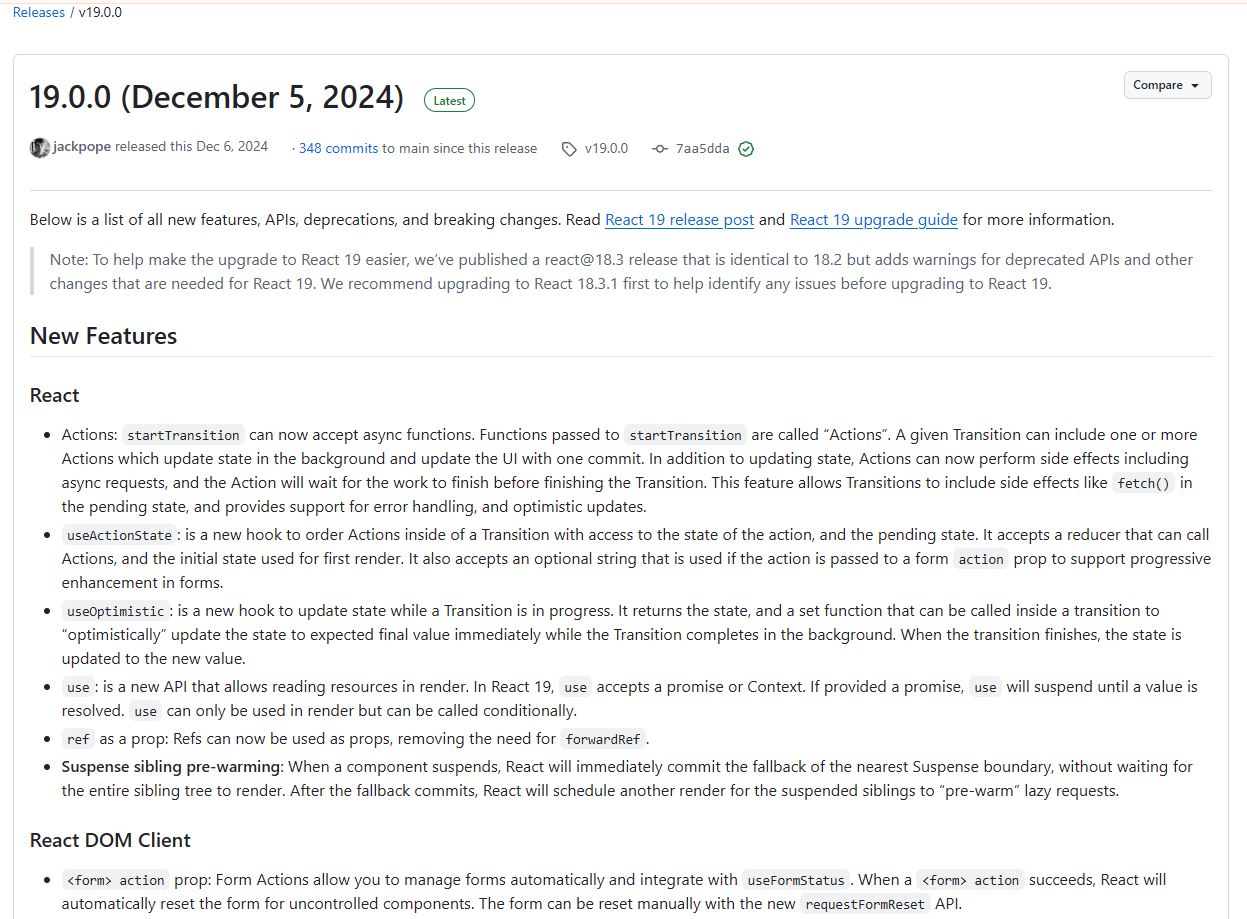
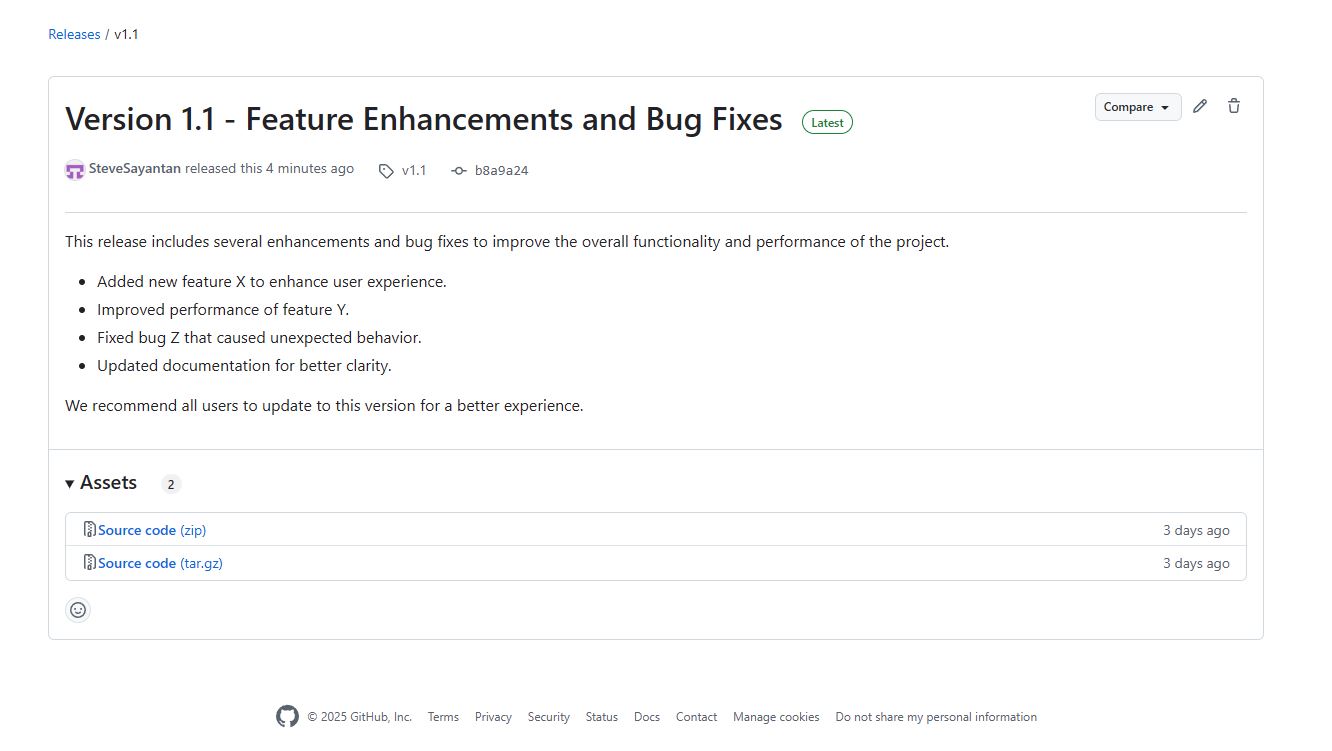
A GitHub Release is an enhanced version of a tag, including:
✅ A tag (pointing to a specific commit).
✅ Release notes (describing changes).
✅ Archived source code (auto-generated).
✅ Optionally, compiled binaries or assets
Here's an example of the latest release of React
How to Create a Release on GitHub
Open your GitHub repository.
Click on "Releases" in the right-hand sidebar.
Click "Draft a new release".
Select an existing tag or create a new one.
Add release notes, binaries, or installers (optional).
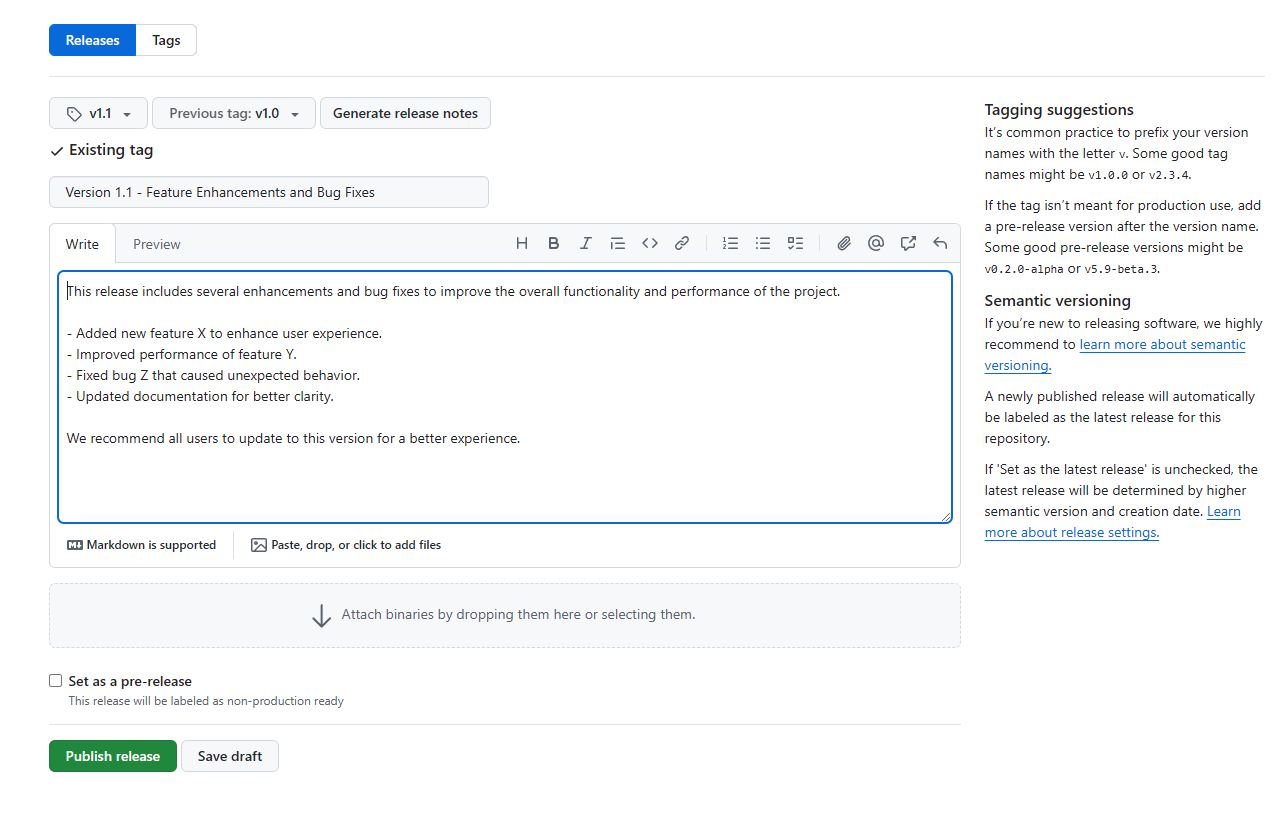
Click "Publish release" to finalize it.
Conclusion
Git tagging is an essential tool for version control, making it easier to track project milestones and releases. Whether using lightweight tags for quick references or annotated tags for detailed versioning, tags help developers maintain clarity and organization in their projects.
🚀 Start using Git tags today to streamline your version control workflow!